爬虫

和机器学习一样,我第一次学习python爬虫是没有任何成果的,一开始是听说有这么个东西,就去zlib上随便下了本参考书,由于参考书是十年前的,因此使用了很多老掉牙的库和奇奇怪怪的语法,再加上当时水平有限,根本无法复现,于是就浅尝辄止了.

但现在,我想要试着用爬虫找到合适的招聘数据用来为以后的暑期实习和秋招服务,所以又把这门技术捡起来从零开始学了.

  • 参考文章: 菜鸟教程以及官方文档

爬虫概念

wiki
Web crawler, sometimes called a spider or spiderbot and often shortened to crawler, is an Internet bot that systematically browses the World Wide Web and that is typically operated by search engines for the purpose of Web indexing (web spidering)
实际上,只要一个自动化程序做了下列的某一件事情,就可以认定为爬虫:

  • 获取web资源
  • 模拟浏览器/用户行为
  • 批量获取数据

这几个操作基本涵盖了抢票脚本,pdf下载,训练数据爬取等一系列常见的爬虫情景.

最常见的爬虫无疑就是搜索引擎了,这些巨无霸爬虫不间断的访问数以千万计的网站,并给数据做好归类和索引.

爬虫历史

翻遍全网,我确实找不到一个能够好好讲讲从爬虫概念的诞生到最新爬虫框架应用的博客文章(难道谈这个是犯法吗!)

遗憾的是,我目前没有做这方面梳理的打算,等我真正闲下来再写吧,毕竟随便一想就知道这需要大量的检索和查证.

python爬虫工具时间线

  • 04年: BeautifulSoup,绝对的老资历,爬虫入门书十本有十本会谈到它

  • 08年: Scrapy,工业级别的异步爬虫框架,也是推荐的爬虫入门库

  • 08年: Selenium,浏览器自动化鼻祖, 物理驱动 WebDriver 模拟真实用户操作

  • 12年: Requests,物理简化 HTTP 请求逻辑

  • 20年: Playwright,微软出品,物理支持多驱动与自动等待,现代爬虫框架

  • 但我不打算按照时间顺序来,而是按照难易程度来讲解😊

requests库学习

是什么,怎么用

Requests is an elegant and simple HTTP library for Python, built for human beings.

  • 官方的宣言非常简单明了
1
2
3
4
5
6
7
8
import requests

r = requests.get('https://api.github.com/events')
r = requests.post('https://httpbin.org/post', data={'key': 'value'})
r = requests.put('https://httpbin.org/put', data={'key': 'value'})
r = requests.delete('https://httpbin.org/delete')
r = requests.head('https://httpbin.org/get')
r = requests.options('https://httpbin.org/get')

自然,当我们使用爬虫时,只需要使用get请求就足够了

给get请求带上参数

If you were constructing the URL by hand, this data would be given as key/value pairs in the URL after a question mark, e.g. httpbin.org/get?key=val. Requests allows you to provide these arguments as a dictionary of strings, using the params keyword argument.

1
2
3
4
5
6
7
8
9
10
11
payload = {'key1': 'value1', 'key2': 'value2'}
r = requests.get('https://httpbin.org/get', params=payload)
print(r.url)
# https://httpbin.org/get?key2=value2&key1=value1

# another file
payload = {'key1': 'value1', 'key2': ['value2', 'value3']}

r = requests.get('https://httpbin.org/get', params=payload)
print(r.url)
# https://httpbin.org/get?key1=value1&key2=value2&key2=value3
  • 通过在对应地址后面加参数可以实现按页数/分类爬取

给get请求设置超时时限

1
requests.get('https://github.com/', timeout=0.001)

当get请求用时超过timeout值时自动报错

定制头部(Headers)

If you’d like to add HTTP headers to a request, simply pass in a dict to the headers parameter.

1
2
3
4
url = 'https://api.github.com/some/endpoint'
headers = {'user-agent': 'my-app/0.0.1'}

r = requests.get(url, headers=headers)

处理get请求获取的内容

1
2
3
4
5
6
7
8
9
10
import requests

r = requests.get('https://api.github.com/events')
# 我们可以以多种文本形式来处理这个r对象,requests库会自动帮我们返回所需的文本形式

r.text # 纯文本形式 '[{"repository":{"open_issues":0,"url":"https://github.com/...

r.content # 二进制形式 b'[{"repository":{"open_issues":0,"url":"https://github.com/...

r.json() # json形式 [{'repository': {'open_issues': 0, 'url': 'https://github.com/...

处理返回的状态码

1
2
3
r = requests.get('https://httpbin.org/get')
r.status_code
# 200
  • 状态码在判断是否正常爬取内容的时候非常重要

处理返回的头部

1
2
3
4
5
6
7
8
9
10
11
12
13
14
15
16
17
r.headers
# {
# 'content-encoding': 'gzip',
# 'transfer-encoding': 'chunked',
# 'connection': 'close',
# 'server': 'nginx/1.0.4',
# 'x-runtime': '148ms',
# 'etag': '"e1ca502697e5c9317743dc078f67693f"',
# 'content-type': 'application/json'
# }

# we can access the headers using any capitalization we want
r.headers['Content-Type']
'application/json'

r.headers.get('content-type')
'application/json'

实战

爬取仓库的issues

1
2
3
4
5
6
7
8
9
10
11
12
13
14
15
16
17
18
19
20
21
22
23
24
25
26
27
28
29
30
31
32
33
34
35
36
37
38
39
40
41
42
43
44
45
SEARCH_URL="https://api.github.com/search/issues"
# 爬虫专用的GitHub api网址
HEADERS: dict = {
"Authorization": f"token {TOKEN}",
"Accept": "application/vnd.github+json",
}
# 带有TOKEN认证的请求头部可以扩大爬虫的权限
# Accept字段表明希望获取json格式的数据
def fetch_issues(start, end):
page = 1
issues = []

while True:
r = requests.get(
SEARCH_URL,
headers=HEADERS,
params={
"q": f"repo:ruanyf/weekly 谁在招人 created:{start}..{end}",
# start..end 为时间范围筛选
"per_page": 100,
# 单次请求返回的数据条数,100为最大值
"page": page,
# 当前页码
"sort": "created",
# 按照创建时间排序
"order": "asc",
# asc-ascend(升序),另外有desc-descend(降序)
},
)

data = r.json()
# 用json格式读取数据
items = data.get("items", [])
# 用get方法获取data的items键对应的列表,若不存在该键则返回空列表
if not items:
break
# 若为空则说明全部爬取完了
issues.extend(items)
# 将新列表连接到issues列表的末尾
page += 1
# 爬取下一页
time.sleep(1)
# 等一秒再请求,避免被封
return issues
# 返回issues列表

items中元素的结构示例

1
2
3
4
5
6
7
8
9
10
11
12
13
14
15
16
17
18
19
20
21
22
23
24
25
26
27
28
29
30
31
32
33
34
35
36
37
38
39
40
41
42
43
44
45
46
47
48
49
50
51
52
53
54
55
56
57
58
59
60
61
62
63
64
65
66
67
68
69
70
71
72
73
74
{
"url": "https://api.github.com/repos/ruanyf/weekly/issues/737",
"repository_url": "https://api.github.com/repos/ruanyf/weekly",
"labels_url": "https://api.github.com/repos/ruanyf/weekly/issues/737/labels{/name}",
"comments_url": "https://api.github.com/repos/ruanyf/weekly/issues/737/comments",
"events_url": "https://api.github.com/repos/ruanyf/weekly/issues/737/events",
"html_url": "https://github.com/ruanyf/weekly/issues/737",
"id": 474420491,
"node_id": "MDU6SXNzdWU0NzQ0MjA0OTE=",
"number": 737,
"title": "谁在招人?",
"user": {
"login": "hobo-tt",
"id": 53465562,
"node_id": "MDQ6VXNlcjUzNDY1NTYy",
"avatar_url": "https://avatars.githubusercontent.com/u/53465562?v=4",
"gravatar_id": "",
"url": "https://api.github.com/users/hobo-tt",
"html_url": "https://github.com/hobo-tt",
"followers_url": "https://api.github.com/users/hobo-tt/followers",
"following_url": "https://api.github.com/users/hobo-tt/following{/other_user}",
"gists_url": "https://api.github.com/users/hobo-tt/gists{/gist_id}",
"starred_url": "https://api.github.com/users/hobo-tt/starred{/owner}{/repo}",
"subscriptions_url": "https://api.github.com/users/hobo-tt/subscriptions",
"organizations_url": "https://api.github.com/users/hobo-tt/orgs",
"repos_url": "https://api.github.com/users/hobo-tt/repos",
"events_url": "https://api.github.com/users/hobo-tt/events{/privacy}",
"received_events_url": "https://api.github.com/users/hobo-tt/received_events",
"type": "User",
"user_view_type": "public",
"site_admin": false
},
"labels": [],
"state": "closed",
"locked": false,
"assignees": [],
"milestone": null,
"comments": 0,
"created_at": "2019-07-30T07:28:48Z",
"updated_at": "2019-07-30T07:29:41Z",
"closed_at": "2019-07-30T07:29:41Z",
"assignee": null,
"author_association": "NONE",
"active_lock_reason": null,
"sub_issues_summary": {
"total": 0,
"completed": 0,
"percent_completed": 0
},
"issue_dependencies_summary": {
"blocked_by": 0,
"total_blocked_by": 0,
"blocking": 0,
"total_blocking": 0
},
"body": "北京国际音乐节文化传播有限公司\r\n地点:北京市朝阳区三间房南里4号院第96栋综合办公楼\r\n简历投递Email:[](url)yuanweitong@bmfbj.com\r\n\r\n### 前端工程师\r\n**岗位职责:**\r\n1、负责项目前端架构设计及研发工作;\r\n3、参与复杂业务系统技术选型,架构设计实现,新兴技术研究职责要求;\r\n4、负责前端界面的开发工作;\r\n5、根据产品和需求,依照当前技术架构进行前端开发;\r\n6、负责页面布局优化和调整。\r\n7、对接API数据、并可协调整体数据对接\r\n**任职条件:**\r\n1、本科及以上学历,三年以上web前端开发工作经验;\r\n2、精通HTML,CSS,了解W3C标准,能够熟练配合美工完成兼容主流浏览器的前端页面精通JavaScript,Ajax,DOM等前端技术,精通Vue前端框架;\r\n3、熟悉HTML5/CSS3de.js/Less/Scss等技术能持续优化前端页面的兼 容性和执行效率了解前端页面组件化;\r\n4、对单页WEB应用开发有极强的学习能力,对新技术有浓厚的研究兴趣;\r\n5、熟悉一门非JavaScript语言,如Java、Python、Ruby等\r\n6、熟悉小程序、VUE\r\n\r\n职位详情见[招聘网](https://www.lagou.com/jobs/6077252.html?source=pl&i=pl-1&show=b0079c35e8a042c49b24a6018cec2bac)",
"reactions": {
"url": "https://api.github.com/repos/ruanyf/weekly/issues/737/reactions",
"total_count": 0,
"+1": 0,
"-1": 0,
"laugh": 0,
"hooray": 0,
"confused": 0,
"heart": 0,
"rocket": 0,
"eyes": 0
},
"timeline_url": "https://api.github.com/repos/ruanyf/weekly/issues/737/timeline",
"performed_via_github_app": null,
"state_reason": "completed",
"pinned_comment": null,
"score": 1.0
}

bs4学习

  • 官方文档
    • 一般只用得上其中的一小部分功能,所以翻翻就好了

Beautiful Soup现在的版本为4.13.3,且第四版从12年就已经发布,故一般称为bs4.

名字来源

It takes its name from the poem Beautiful Soup from Alice’s Adventures in Wonderland and is a reference to the term “tag soup” meaning poorly-structured HTML code.

是什么,怎么用

bs4主要用于解析HTML和XML文档,但是它本身不负责解析,而是需要你配合解析库如"lxml"或者python内置的html.parser来进行解析,但是你没有单独在文件里导入,只要虚拟环境中有这个lxml库就可以了

1
2
3
4
5
6
7
8
9
10
from bs4 import BeautifulSoup
import requests
# 使用 requests 获取网页内容
url = 'https://cn.bing.com/' # 抓取bing搜索引擎的网页内容
response = requests.get(url)

# 使用 BeautifulSoup 解析网页
soup = BeautifulSoup(response.text, 'lxml') # 使用 lxml 解析器
# 解析网页内容 html.parser 解析器
# soup = BeautifulSoup(response.text, 'html.parser')

find与find_all

基础用法

1
2
3
4
5
6
7
8
9
10
11
12
13
14
15
16
17
18
19
20
21
22
23
24
25
26
27
28
29
30
31
32
from bs4 import BeautifulSoup
import requests

# 指定你想要获取标题的网站
url = 'https://www.baidu.com/' # 抓取bing搜索引擎的网页内容

# 发送HTTP请求获取网页内容
response = requests.get(url)

soup = BeautifulSoup(response.text, 'lxml')

# 查找第一个 <a> 标签
first_link = soup.find('a')
print(first_link)
print("----------------------------")

# 获取第一个 <a> 标签的 href 属性
first_link_url = first_link.get('href')
print(first_link_url)
print("----------------------------")

# 查找所有 <a> 标签
all_links = soup.find_all('a')
print(all_links)


# 获取第一个 <p> 标签中的文本内容
paragraph_text = soup.find("p").get_text()

# 获取页面中所有文本内容
all_text = soup.get_text()
print(all_text)

加入标签或属性

1
2
3
4
5
# 查找所有 class="example-class" 的 <div> 标签
divs_with_class = soup.find_all('div', class_='example-class')

# 查找具有 id="unique-id" 的 <p> 标签
unique_paragraph = soup.find('p', id='unique-id')

非常显然的是,bs4仅支持获取静态网页内容,在现在很多网页都是用js渲染的情况下不太实用了,但作为新手入门库还是很不错的,可以一下子感受到爬虫的威力,没有任何学习难度.

bs4源码概览

如果你闲的蛋疼,可以像我一样下载bs4的源码:

1
git clone https://git.launchpad.net/beautifulsoup

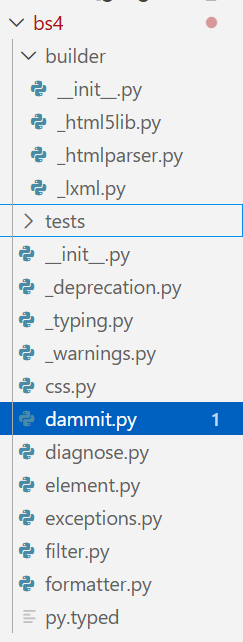
alt text
事实上,当我们翻阅源码时,会惊讶的发现这个有着20年悠久历史的python库竟然只有这么一点文件!

  • 而且还能看到dammit.py这么一个神奇的名字

小结

结合requests(,bs4)和支持读写文件的库,我们现在基本可以爬取所有的静态网页资源,并在处理后进行存储了.

Selenium学习

  • 官方教程
    • 非常遗憾的是,官方的文档写的很烂
  • geeksforgeeks
    • 翻来翻去能找到的唯一质量比较好的教程,反过来说明selenium本身的用户生态太差了

是什么,怎么用

Selenium 通过使用 WebDriver 支持市场上所有主流浏览器的自动化。 WebDriver 是一个 API 和协议,它定义了一个语言中立的接口,用于控制 web 浏览器的行为。 每个浏览器都有一个特定的 WebDriver 实现,称为驱动程序。 驱动程序是负责委派给浏览器的组件,并处理与 Selenium 和浏览器之间的通信。

换句话说,没有WebDriver就用不了selenium,所以我们需要下载自己浏览器版本对应的驱动器.

当然,去官方慢慢翻驱动器版本还是太琐碎了,现在的selenium支持自动下载对应的驱动器,就没必要如过时的教程所说去配置驱动器的环境变量了.

1
2
3
4
5
from selenium import webdriver

driver = webdriver.Chrome()
driver.get("https://www.google.com")
# 只写这三行代码也会自动下载对应的驱动器到本地缓存目录中

运行上方代码,我们成功用chrome打开了google网站

  • 至于为什么会自动退出,是因为我们后面没有其他代码了,webdriver会自动关闭

如果你还是没明白selenium的用法的话,你可以想一下,如果有一个实验要你去找一百个人填问卷,你可以将问卷设定为允许多次填写,安排一些合理的选择题,就可以很轻松的用selenium模拟真实用户登录问卷星网站,用预先设定的随机值去逐个填写问卷,这样一下来,就算要填一千份你一个小时也能搞定了.

  • 注意!这是严重的学术不端行为!请大家千万不要模仿!

可能的vpn问题

我用的clash设定了系统代理,在终端配置了代理端口,还在bypass列表里设定了排除系统端口,但selenium还是会被拦截…

AI的解决方案

1
2
3
4
5
import os
os.environ["HTTP_PROXY"] = ""
os.environ["HTTPS_PROXY"] = ""
os.environ["no_proxy"] = "localhost,127.0.0.1"
# 在代码上方加上这个,但更推荐单独放入一个文件后再导入

基础用法一览

进入网页并输入

  • 注意用chrome的话容易被拦截,反正我被拦截了
1
2
3
4
5
6
7
8
9
10
11
12
13
14
15
16
17
18
from selenium import webdriver
from selenium.webdriver.common.by import By
from selenium.webdriver.common.keys import Keys
import time

# Launch browser and open Google
drv = webdriver.Chrome()
drv.get("https://www.google.com//")

# Search "GeeksforGeeks"
box = drv.find_element(By.NAME, "q")
# 寻找第一个name="q"的元素,也就是搜索框
box.send_keys("GeeksforGeeks", Keys.RETURN)
# Keys.RETURN模拟回车键

# Wait and close browser
time.sleep(5)
drv.quit()

find_element与find_elements方法

该方法的第一个参数为要查找的属性名,第二个参数为属性值

1
2
3
4
5
6
element = driver.find_element(By.ID, "passwd-id")
element = driver.find_element(By.NAME, "passwd")
element = driver.find_element(By.XPATH, "//input[@id='passwd-id']")

# If you need to find multiple elements, use:
elements = driver.find_elements(By.NAME, "passwd")

模拟键盘交互

1
2
3
4
5
6
7
8
9
# If you want to input text into a field, you can use:
element.send_keys("some text")
# You can also simulate pressing arrow keys or other keys using the Keys class:

element.send_keys(" and some", Keys.ARROW_DOWN)

# To clear the contents of a text field or textarea, use the clear method:

element.clear()

实战

1
2
3
4
5
6
7
8
9
10
11
12
13
14
15
16
17
18
19
20
21
22
23
24
25
26
27
28
29
30
31
32
33
34
35
36
37
38
39
40
41
42
43
44
45
46
47
48
49
50
51
52
53
54
# Import the necessary modules from Selenium
from selenium import webdriver
from selenium.webdriver.common.by import By
from selenium.webdriver.common.keys import Keys # Added import for Keys
from selenium.webdriver.support.ui import WebDriverWait # To wait for elements
from selenium.webdriver.support import (
expected_conditions as EC,
) # For expected conditions
import time


def test():
# you can choose other browsers like Chrome, Firefox, etc.
driver = webdriver.Edge()

# Navigate to the GeeksforGeeks website
driver.get("https://www.geeksforgeeks.org/")

# Maximize the browser window
driver.maximize_window()

# Wait for 3 seconds to ensure the page is loaded
time.sleep(3)

# Handle iframe if one exists (e.g., an overlay)
iframe_element = driver.find_element(
By.XPATH, "//iframe[contains(@src,'accounts.google.com')]"
)
driver.switch_to.frame(iframe_element)

# Close the overlay (e.g., Google sign-in iframe)
closeele = driver.find_element(By.XPATH, "//*[@id='close']")
closeele.click()

# Wait for the iframe action to complete
time.sleep(3)

# Switch back to the main content
driver.switch_to.default_content()

# Locate the search icon element using XPath
searchIcon = driver.find_element(By.XPATH, "//span[@class='flexR gs-toggle-icon']")

# Wait for 3 seconds before interacting with the search input
time.sleep(3)

# Locate the input field for search text using XPath
enterText = driver.find_element(By.XPATH, "//input[@class='gs-input']")

# Enter the search query "Data Structure" into the input field
enterText.send_keys("Data Structure")

# Send the RETURN key to submit the search query
enterText.send_keys(Keys.RETURN)

真>>实战

1
2
3
4
5
6
7
8
9
10
11
12
13
14
15
16
17
18
19
20
21
22
23
24
25
26
27
28
29
30
31
32
33
34
35
36
37
38
39
40
41
42
43
44
45
46
47
48
49
50
51
52
53
54
55
56
57
58
59
60
61
62
63
64
65
66
67
68
69
70
71
72
73
74
75
76
77
78
79
80
81
82
83
84
85
86
87
88
89
90
91
92
93
94
95
96
97
98
99
100
101
102
from selenium import webdriver
from selenium.webdriver.common.by import By
from selenium.webdriver.chrome.options import Options
import time
import random

wjx_url = ""
# wjx问卷网址


def generate_one_response():
return {
"div1": random.choice(["男", "女"]),
"div2": random.choice(
["理工类", "文史哲类", "社会科学类(法学、管理学等)", "艺术类", "其他"]
),
"div3": random.choice(["非常重要", "重要", "一般", "不重要"]),
"div4": random.choice(
["深入学习过", "了解过部分内容", "听说过但不了解", "完全不了解"]
),
"div5": random.choice(["是,应该加强", "不需要,当前已足够", "无所谓"]),
"div6": random.choice(["总是", "经常", "偶尔", "很少"]),
"div7": random.choice(
[
"先转发再说",
"只分享来自官方渠道的信息",
"自己查证后再决定是否转发",
"看到也不管,不会转发",
]
),
"div8": random.choice(["从不", "偶尔", "经常"]),
"div9": random.choice(["从不", "偶尔", "经常"]),
"div10": random.choice(["经常", "偶尔", "很少", "从不"]),
"div11": random.choice(["是,经常", "偶尔", "有过一次", "没有遇到过"]),
"div12": random.sample(
[
"网络暴力(如恶意攻击、辱骂)",
"网络诈骗(如假兼职、中奖信息)",
"虚假信息或网络谣言",
"侵犯隐私(如曝光个人信息)",
"不良言论或低俗内容",
"网络沉迷(如过度使用短视频/游戏)",
],
random.randint(2, 4),
),
}


def fill_and_submit():
# options.add_argument("--headless") # 可取消注释用于无头运行
driver = webdriver.Chrome()

driver.get(wjx_url)
time.sleep(2)

# 点击“开始作答”按钮
try:
start_button = driver.find_element(By.CLASS_NAME, "startbtn")
start_button.click()
print("已点击开始作答按钮")
except Exception as e:
print("未找到开始按钮,可能已跳转页面")

time.sleep(3) # 等待问卷加载

answers = generate_one_response()

for div_id, value in answers.items():
try:
div = driver.find_element(By.ID, div_id)
if isinstance(value, list):
for val in value:
labels = div.find_elements(By.CLASS_NAME, "label")
for label in labels:
if val in label.text:
label.click()
break
else:
labels = div.find_elements(By.CLASS_NAME, "label")
for label in labels:
if value in label.text:
label.click()
break
except Exception as e:
print(f"{div_id} 填写失败: {e}")

time.sleep(0.3)

# 点击提交按钮
try:
submit_btn = driver.find_element(By.ID, "ctlNext")
submit_btn.click()
print("问卷提交成功!")
except Exception as e:
print(f"提交失败: {e}")

time.sleep(2)
driver.quit()


fill_and_submit()
# 我们可以加上一个while循环...
  • 整个代码并没有任何难懂的地方,只需要我们亲自去查html元素对应的名字就可以实现自动化答题了

PlayWright学习

  • 官方文档
    • 看似内容很多,其实有用的东西很少…

是什么,怎么用

Playwright was created specifically to accommodate the needs of end-to-end testing. Playwright supports all modern rendering engines including Chromium, WebKit, and Firefox. Test on Windows, Linux, and macOS, locally or on CI, headless or headed with native mobile emulation.

这段文字把playwright介绍为一个测试工具,乍一看与爬虫没有任何关系,但黑体部分不正是selenium支持的功能吗,那它自然也可以实现selenium的爬虫功能了.

playwright的历史并不很长,最开始是以js版本推出的,不知为何又引入到了python里,并制作了两个python库,一个是我们常用的playwright库,还有一个是pytest-playwright,试图取代常规的pytest库,并在官方文档里反复提及…,在我看来完全没有必要.

以下代码是一个playwright功能展示的简单示例,光是学习的话,我们可以使用自己电脑里的浏览器内核,不必像官网或者其他博客所说先运行playwright install命令,那会默认在全局安装多种浏览器内核,占用体积还不小😇.

  • 由于playwright与selenium不同,不能在代码中默认安装,而是需要提前下载好驱动.因此在生产环境下还是得老老实实装的,当然也只要装自己所需的那一款内核就行了
1
2
3
4
5
6
7
8
9
10
11
12
13
14
from playwright.sync_api import sync_playwright

with sync_playwright() as p:
browser = p.chromium.launch(
executable_path="C:/Program Files/Google/Chrome/Application/chrome.exe",
headless=True,
)
# 如果chrome.exe路径不对你就改成自己的路径
page = browser.new_page()
page.goto("https://playwright.dev")
print(page.title())
page.goto("https://google.com")
print(page.title())
browser.close()

基本语法

同步/异步API

  • 参考
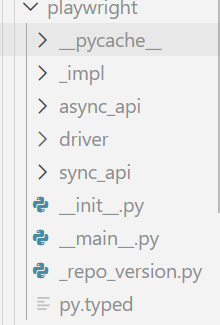
    alt text
    看上图就知道playwright中有两个主要的模块:sync_api和async_api,分别对应着同步和异步的请求,我们先来看同步请求的用法:
1
2
3
4
5
6
7
8
9
10
11
12
13
14
15
16
17
18
19
20
21
22
23
24
25
26
27
28
29
30
31
32
33
from playwright.sync_api import sync_playwright
def testcase1():
print("testcase1 start")
with sync_playwright() as p:
browser = p.chromium.launch(
executable_path="C:/Program Files/Google/Chrome/Application/chrome.exe",
headless=False,
)
page = browser.new_page()
page.goto("https://www.baidu.com/")
print(page.title())
page.fill("#chat-textarea", "test")
# 文本框输入test
page.click("#chat-submit-button")
# 提交
browser.close()
print("testcase1 done")


def testcase2():
print("testcase2 start")
with sync_playwright() as p:
browser2 = p.chromium.launch(
executable_path="C:/Program Files/Google/Chrome/Application/chrome.exe",
headless=False,
)
page2 = browser2.new_page()
page2.goto("https://www.sogou.com/")
print(page2.title())
page2.fill('input[name="query"]', "test")
page2.click("text=搜索")
browser2.close()
print("testcase2 done")

显然,同步的用法和selenium几乎没有差别,那我们再来看看异步:

1
2
3
4
5
6
7
8
9
10
11
12
13
14
15
16
17
18
19
20
21
22
23
24
25
26
27
28
29
30
31
32
33
34
35
36
37
38
39
40
41
42
43
44
45
import asyncio
from playwright.async_api import async_playwright


async def testcase1():
print("testcase1 start")
async with async_playwright() as p:
browser = await p.chromium.launch(
executable_path="C:/Program Files/Google/Chrome/Application/chrome.exe",
headless=False,
)
page = await browser.new_page()
await page.goto("https://www.baidu.com/")
print(await page.title())
await page.fill("#chat-textarea", "test")
# 文本框输入test
await page.click("#chat-submit-button")
# 提交
await browser.close()
print("testcase1 done")


async def testcase2():
print("testcase2 start")
async with async_playwright() as p:
browser2 = await p.chromium.launch(
executable_path="C:/Program Files/Google/Chrome/Application/chrome.exe",
headless=False,
)
page2 = await browser2.new_page()
await page2.goto("https://www.sogou.com/")
print(await page2.title())
await page2.fill('input[name="query"]', "test")
await page2.click("text=搜索")
await browser2.close()
print("testcase2 done")


async def main():
await testcase2()
await testcase1()


if __name__ == "__main__":
asyncio.run(main())

其实异步版本只是给关键的函数调用加上了异步的修饰而已,但这样就可以显著提升爬取速度了;而selenium并不支持异步爬取,因此逐渐被playwright取代.

Scrapy学习

是什么,怎么用

scrapy是一个一体化爬虫框架,request的上位替代,支持异步处理和终端交互

test.py

1
2
3
4
5
6
7
8
9
10
11
12
13
14
15
16
17
18
19
import scrapy


class QuotesSpider(scrapy.Spider):
name = "quotes"
start_urls = [
"https://quotes.toscrape.com/tag/humor/",
]

def parse(self, response):
for quote in response.css("div.quote"):
yield {
"author": quote.xpath("span/small/text()").get(),
"text": quote.css("span.text::text").get(),
}

next_page = response.css('li.next a::attr("href")').get()
if next_page is not None:
yield response.follow(next_page, self.parse)

运行方式:
scrapy runspider test.py -o quotes.jsonl
运行之后将得到这样这样的内容:

1
2
3
4
{"author": "Jane Austen", "text": "\u201cThe person, be it gentleman or lady, who has not pleasure in a good novel, must be intolerably stupid.\u201d"}
{"author": "Steve Martin", "text": "\u201cA day without sunshine is like, you know, night.\u201d"}
{"author": "Garrison Keillor", "text": "\u201cAnyone who thinks sitting in church can make you a Christian must also think that sitting in a garage can make you a car.\u201d"}
// ...

可以看出来,scrapy通过类来封装爬虫(这类似于pytest中对测试的封装),并且不需要我们再进行额外的库导入,而是在后台包办一切.

scrapy命令行

虽然可以修改,但默认情况下所有 Scrapy 项目都具有相同的文件结构,类似于:

1
2
3
4
5
6
7
8
9
10
11
12
scrapy.cfg
tutorial/
__init__.py
items.py
middlewares.py
pipelines.py
settings.py
spiders/
__init__.py
spider1.py
spider2.py
...

scrapy.cfg 文件所在的目录被称为 项目根目录。该文件包含定义项目设置的 Python 模块名称。示例如下:

1
2
3
4
5
[settings]
default = tutorial.settings

[deploy]
project = tutorial

创建和运行项目

1
scrapy startproject myproject [project_dir]

这将在当前目录下创建一个project_dir文件夹,里面有一个Scrapy 项目,名字为myproject.

  • 如果未指定 project_dir,project_dir的名字将与 myproject 相同

命令行参数一览

全局命令

  • startproject: 创建项目
  • genspider: 在当前项目的spiders文件夹中创建一个新爬虫文件
    • 示例: uv run scrapy genspider hello_world www.bing.com将在文件夹中创建hello_world.py文件.
  • settings: 过
  • runspider: 不创建项目直接运行python文件中的独立爬虫
  • shell: 过
  • fetch: 使用scrapy下载器访问给定的网页
  • view: 过
  • version: 过

仅限项目的命令

  • crawl: 运行某一个爬虫文件
  • check: 自动化测试
  • list: 列出该项目中可用的爬虫文件
  • edit: 编辑某个爬虫文件
  • parse: 过
  • bench: 过

显然,大多数命令都没什么用,还是需要自己去写爬虫文件和测试.

Spider类

基本调用方法

1
2
3
4
5
6
7
8
import scrapy
class HelloWorldSpider(scrapy.Spider):
name = "hello_world"
allowed_domains = ["www.bing.com"]
start_urls = ["https://www.bing.com"]

def parse(self, response):
pass

Spider源码剖析

1
2
3
4
5
6
"""Base class that any spider must subclass.

It provides a default :meth:`start` implementation that sends
requests based on the :attr:`start_urls` class attribute and calls the
:meth:`parse` method for each response.
"""

上述代码为Spider类的注释,也就是说这个类会自动调用start()方法并爬取目标网址后使用parse()方法解析.
让我们看看具体的实现:

1
2
3
4
5
6
7
8
9
10
11
12
13
14
15
16
17
18
19
20
21
22
23
24
25
26
27
28
29
30
31
32
33
34
35
36
37
38
39
40
41
42
43
44
45
46
47
48
49
50
51
52
53
54
55
56
57
58
59
60
61
62
63
64
65
66
67
68
69
70
71
72
73
74
class Spider(object_ref):
# 三个默认参数
name: str
custom_settings: dict[_SettingsKey, Any] | None = None

#: Start URLs. See :meth:`start`.
start_urls: list[str]

# 实例化三个参数
def __init__(self, name: str | None = None, **kwargs: Any):
if name is not None:
self.name: str = name
elif not getattr(self, "name", None):
raise ValueError(f"{type(self).__name__} must have a name")
self.__dict__.update(kwargs)
if not hasattr(self, "start_urls"):
self.start_urls: list[str] = []
# 启用调试函数log
@property
def logger(self) -> SpiderLoggerAdapter:
# circular import
from scrapy.utils.log import SpiderLoggerAdapter # noqa: PLC0415

logger = logging.getLogger(self.name)
return SpiderLoggerAdapter(logger, {"spider": self})

def log(self, message: Any, level: int = logging.DEBUG, **kw: Any) -> None:

self.logger.log(level, message, **kw)
# 初始化爬虫
@classmethod
def from_crawler(cls, crawler: Crawler, *args: Any, **kwargs: Any) -> Self:
spider = cls(*args, **kwargs)
spider._set_crawler(crawler)
return spider

def _set_crawler(self, crawler: Crawler) -> None:
self.crawler: Crawler = crawler
self.settings: BaseSettings = crawler.settings
crawler.signals.connect(self.close, signals.spider_closed)
# 核心函数start,使用start_requests()函数
async def start(self) -> AsyncIterator[Any]:

with warnings.catch_warnings():
warnings.filterwarnings(
"ignore", category=ScrapyDeprecationWarning, module=r"^scrapy\.spiders$"
)
for item_or_request in self.start_requests():
yield item_or_request
# 默认会使用start_urls变量进行爬取
def start_requests(self) -> Iterable[Any]:
warnings.warn(
(
"The Spider.start_requests() method is deprecated, use "
"Spider.start() instead. If you are calling "
"super().start_requests() from a Spider.start() override, "
"iterate super().start() instead."
),
ScrapyDeprecationWarning,
stacklevel=2,
)
if not self.start_urls and hasattr(self, "start_url"):
raise AttributeError(
"Crawling could not start: 'start_urls' not found "
"or empty (but found 'start_url' attribute instead, "
"did you miss an 's'?)"
)
# 这里的Request并非是request库
for url in self.start_urls:
yield Request(url, dont_filter=True)

def _parse(self, response: Response, **kwargs: Any) -> Any:
return self.parse(response, **kwargs)
# 省略其他部分代码

看了源码就可以知道,start,parse两个方法并不会自动调用,换句话说,使用scrapy命令行的时候,其内部是通过调用了这两个方法来进行爬取的.